
Have you ever opened your Profit & Loss in QuickBooks Online only to find that your sales revenue looks double what it should be?
Or maybe you noticed a large balance sitting in an account called Undeposited Funds (or Payments to Deposit) on your Balance Sheet?
In my experience, incorrect use of Undeposited Funds is the most common reason when the business owners tells me their income is doubled or overstated!
Let’s break down why this happens, look at the underlying debits and credits, and walk through the simple 3-step workflow to keep your books accurate
Why Does Revenue Get Duplicated in QBO?
QuickBooks Online has a clearing account called Undeposited Funds (or Payments to Deposit) to hold payments until they are deposited into your bank account.
The proper accounting workflow for a customer payment follows two stages.
Receiving the Payment
When a customer pays an invoice, QBO records the payment in the clearing account.
Dr. Undeposited Funds / Payments to Deposit (Asset increases)
Cr. Accounts Receivable (Asset decreases)
Depositing Funds to the Bank
When you deposit those checks or merchant payouts arrive into your checking account:
Dr. Checking Account (Asset increases)
Cr. Undeposited Funds / Payments to Deposit (Asset decreases back to $0)
Where the Workflow Breaks
The duplicate revenue often happens in the Bank Feed.
When the check and payments are deposited to your bank account, QBO sees the incoming transaction in your bank feed. If the transaction is simply Added, it gets posted to Sales Income – the second time! (first time when an invoice is created).
Meanwhile, the original payment remains stranded in Undeposited Funds, overstating your assets on the Balance Sheet and income on the P&L.
The Correct 3-Step Bank Deposit Workflow
To keep your revenue accurate and clear out Undeposited Funds, you can follow this standard process whenever customer payments are deposited into your bank account:
When a payment is received from a customer and recording “Receive Payment”, ensure the deposit account is set to Undeposited Funds/Payments to Deposit.
Do not select checking account directly as deposit account here. If done so, the payments do not show up in Bank Deposit in Step 2.
Create a Bank Deposit by selecting the bank account where the checks and payments are being deposited.
If multiple customer payments (checks) were deposited together, create a Bank Deposit for those payments in QBO. Bank Deposit screen allows you to select multiple payments recorded to Undeposited Funds/Payments to Deposit account.
In the Bank Feed, the deposit transaction can be matched to the deposit created in the Step 2 above.
Quick Tip to keep Undeposited Funds/Payments to Deposit Account Clean
Every month, we want to check to make sure the cash received in a bank has cleared the undeposited funds account.
In QuickBooks Online though, if you go to the detail of the account, you get a list of all the transactions (ins and outs) in the undeposited funds so it isn’t easy to find the transaction that has not yet cleared.
The easiest way (I know at least) is to go to Bank Deposit screen.
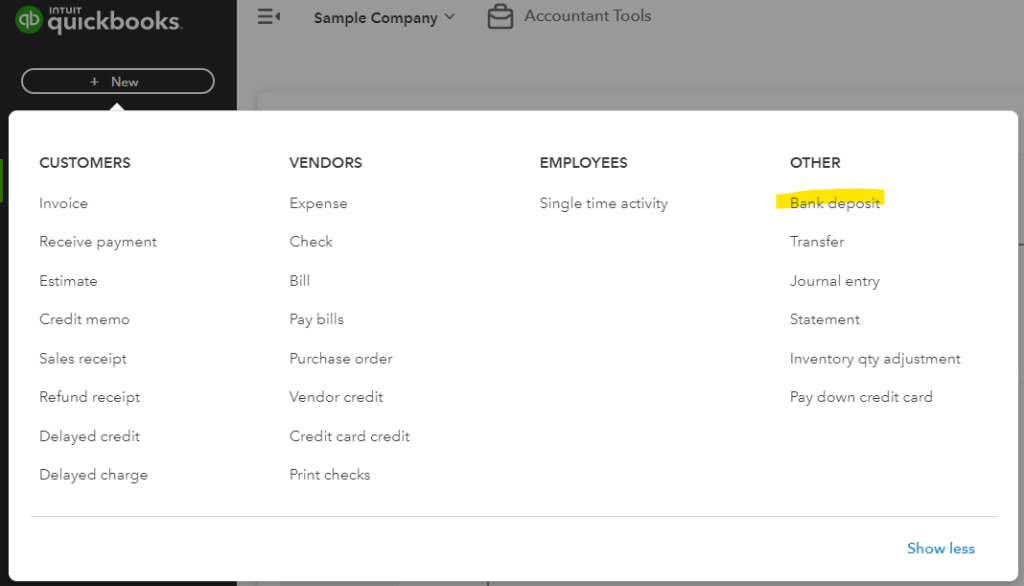
It will list all the transactions sitting in the undeposited funds waiting to be cleared with cash coming into the bank.
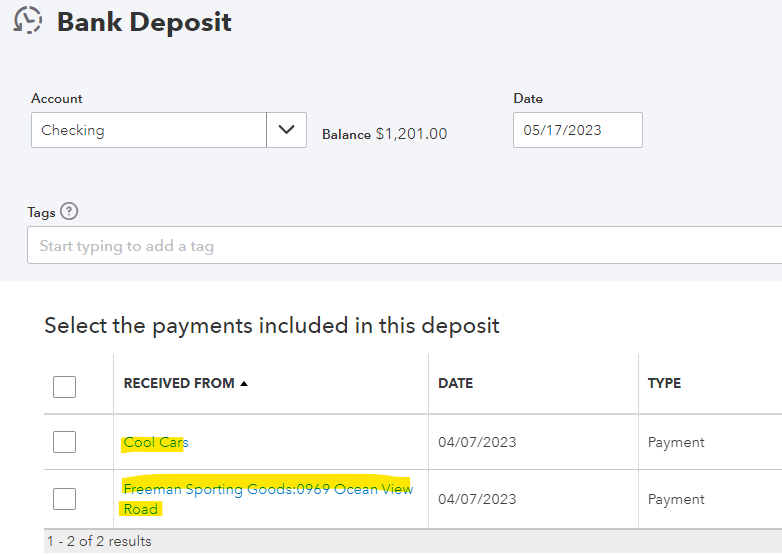
If all the transactions you see are what was paid by the customer but not yet deposited in the bank, you are good to go!
If you see any payments that you feel are already deposited in the bank already, you will want to check:
- If the deposit was actually received in the bank account
- How the deposit transaction was recorded as you may need to fix it so the payment clears the undeposited funds account.
For Bookkeepers & Accountants
I love using Undeposited Funds for two reasons.
1) Makes bank reconciliation easy. When a deposit in Bank Feed is matched directly to multiple payments recorded to a bank account, they all show up individually, so for one deposit in the bank statement, you will have to select multiple payments. When Undeposited Funds and matched with a Bank Deposit, only 1 transaction per deposit show up.
2) When an unknown transactions is recorded to “uncategorized expense” or “Ask accountant” account, then later needs to be matched to payments, those recorded to undeposited funds will show up but those recorded to bank accounts do not!